How to Split & Merge with Spark
Launching Split & Merge
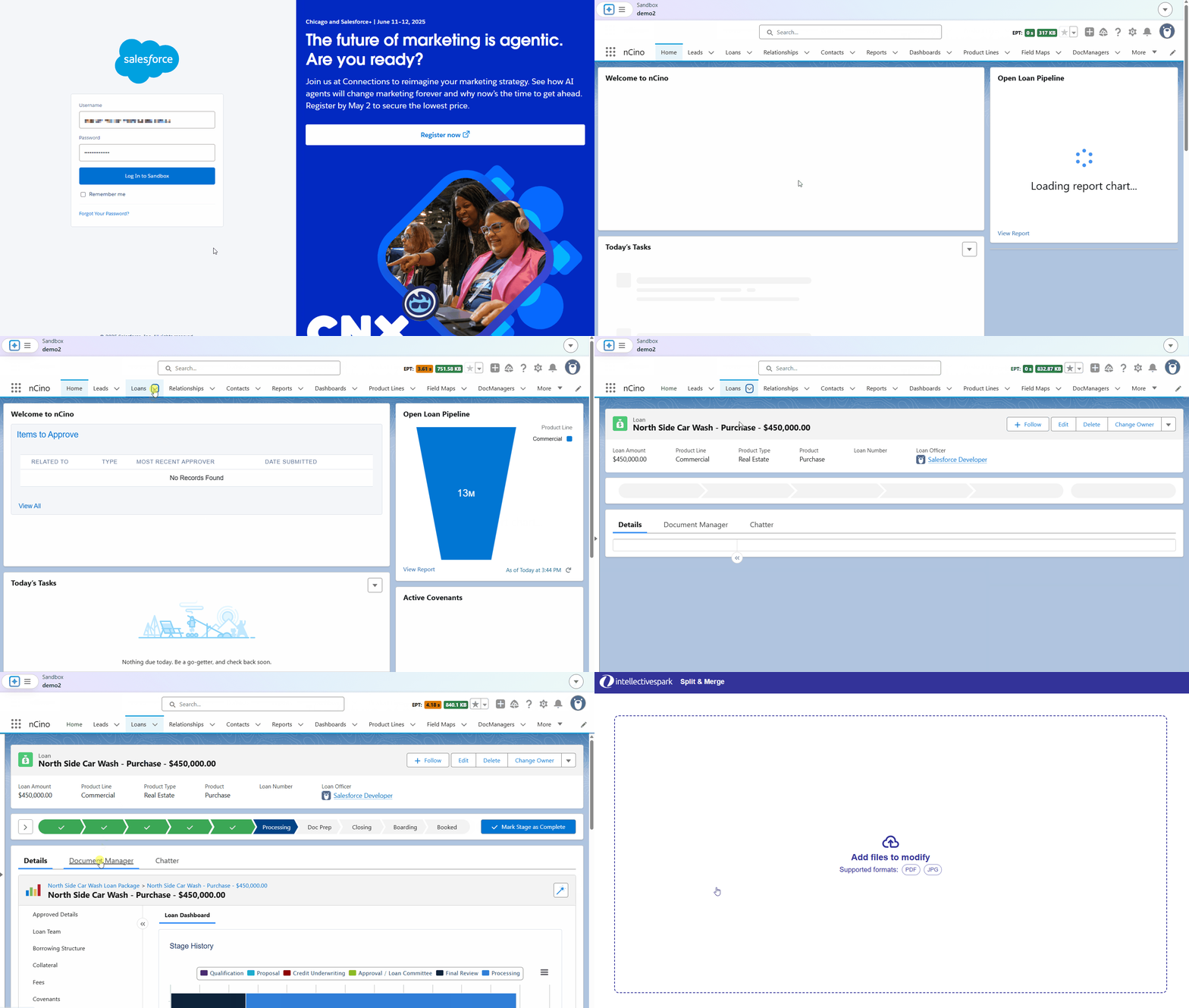
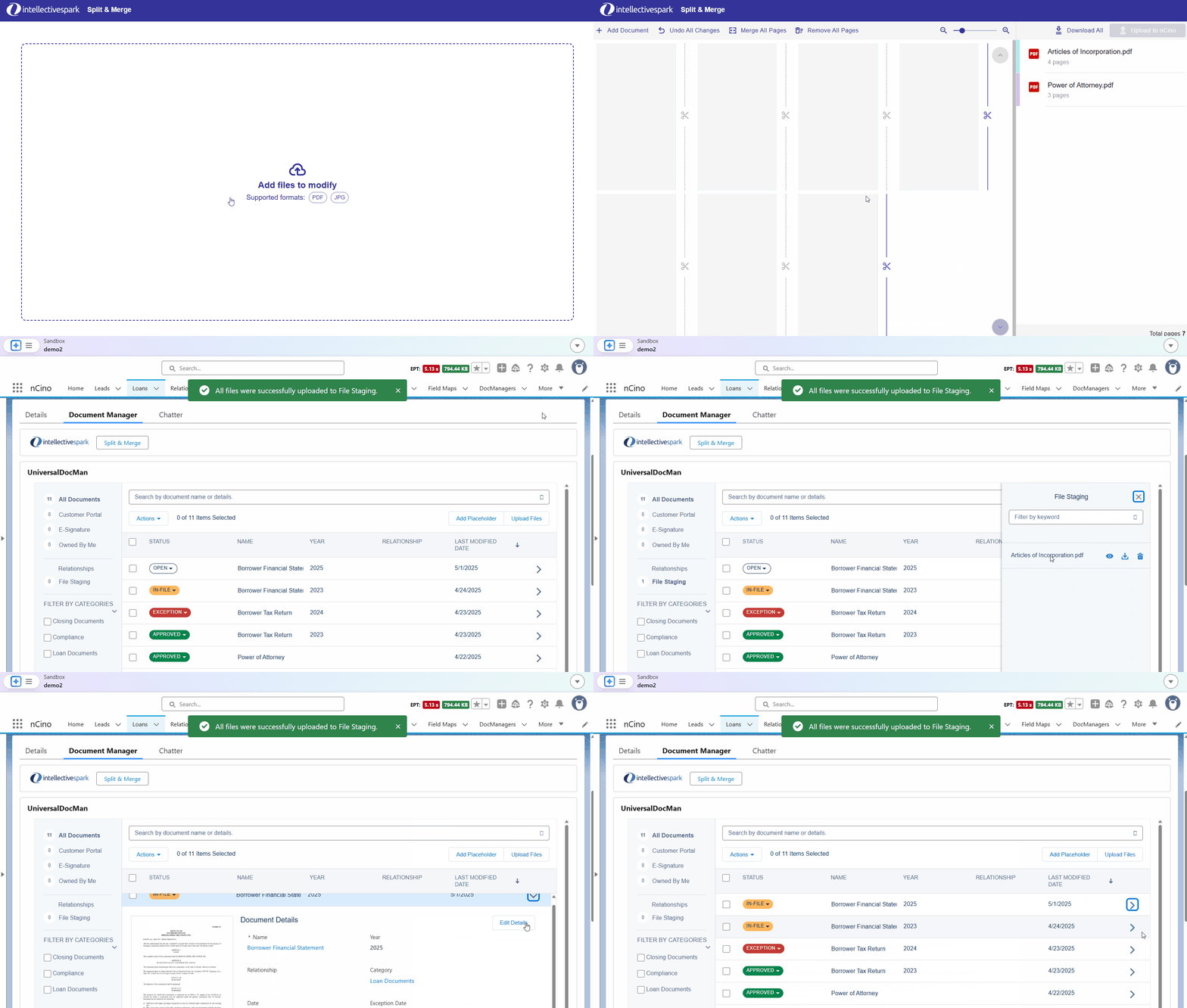
Split & Merge is launched from within nCino.
Log into nCino.
Navigate to a Doc Man (Document Manager) page in nCino.
Click on the Split & Merge button.
A new screen will open.
Continue with Adding Documents.
Adding documents
To start Splitting and Merging documents, first add the documents that you want to process. You have several options.
Add documents from your desktop
To add documents via Drag and Drop from folders on your desktop:
Select one or more documents from your desktop.
Click and drag those documents into the Split & Merge page. Release the mouse button to drop them on the page.
The system will process the documents and show a set of thumbnails for the pages in your documents.
Continue with Splitting documents or Merging documents.

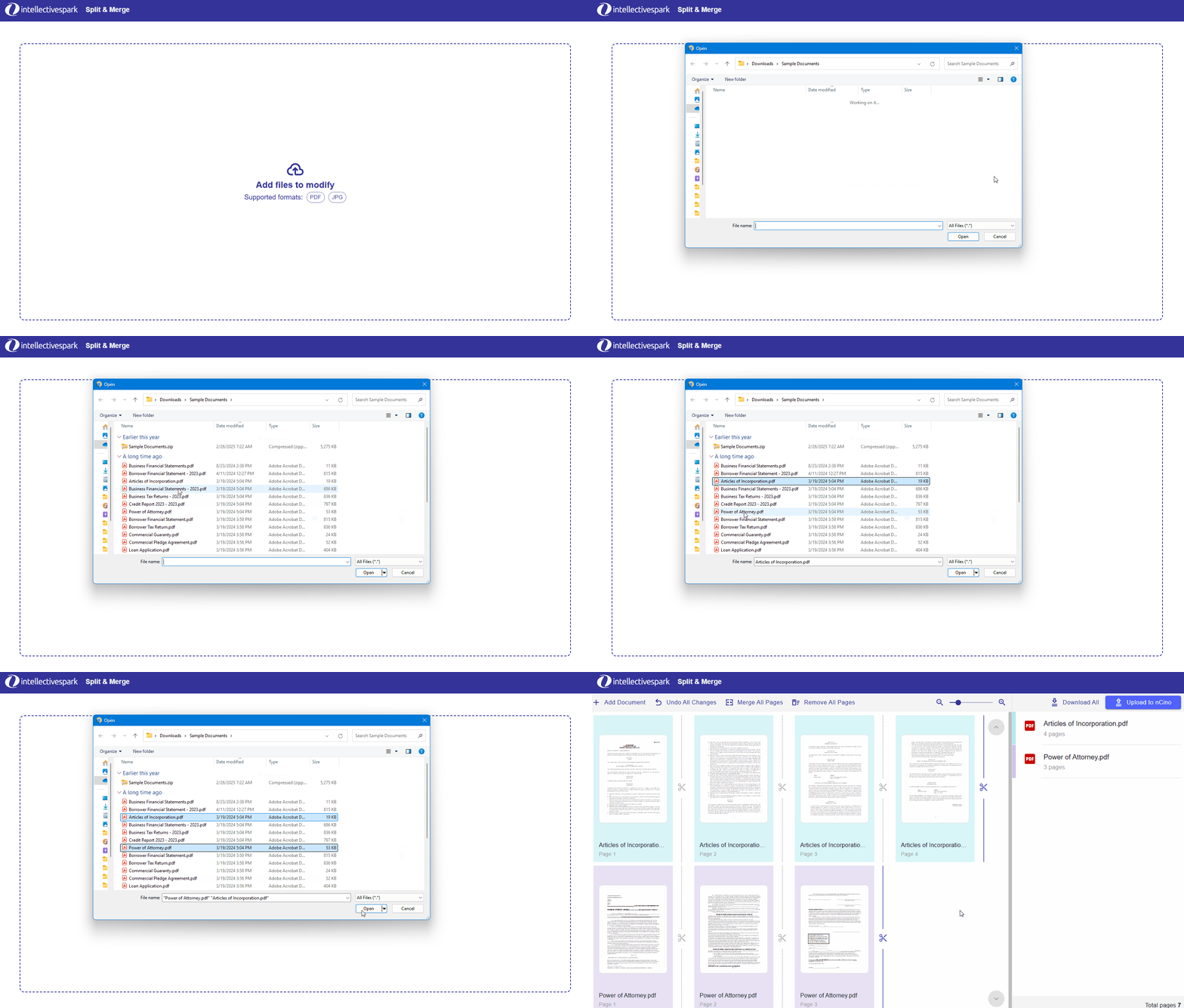
To add documents via browsing:
Click on the Add files to modify region on the page. You will be presented with a standard Browse for Files view.
Browse and select the file or files you would like to add, and add them.
The system will process the documents and show a set of thumbnails for the pages in your documents.
Continue with Splitting documents or Merging documents.
Add documents from email attachments
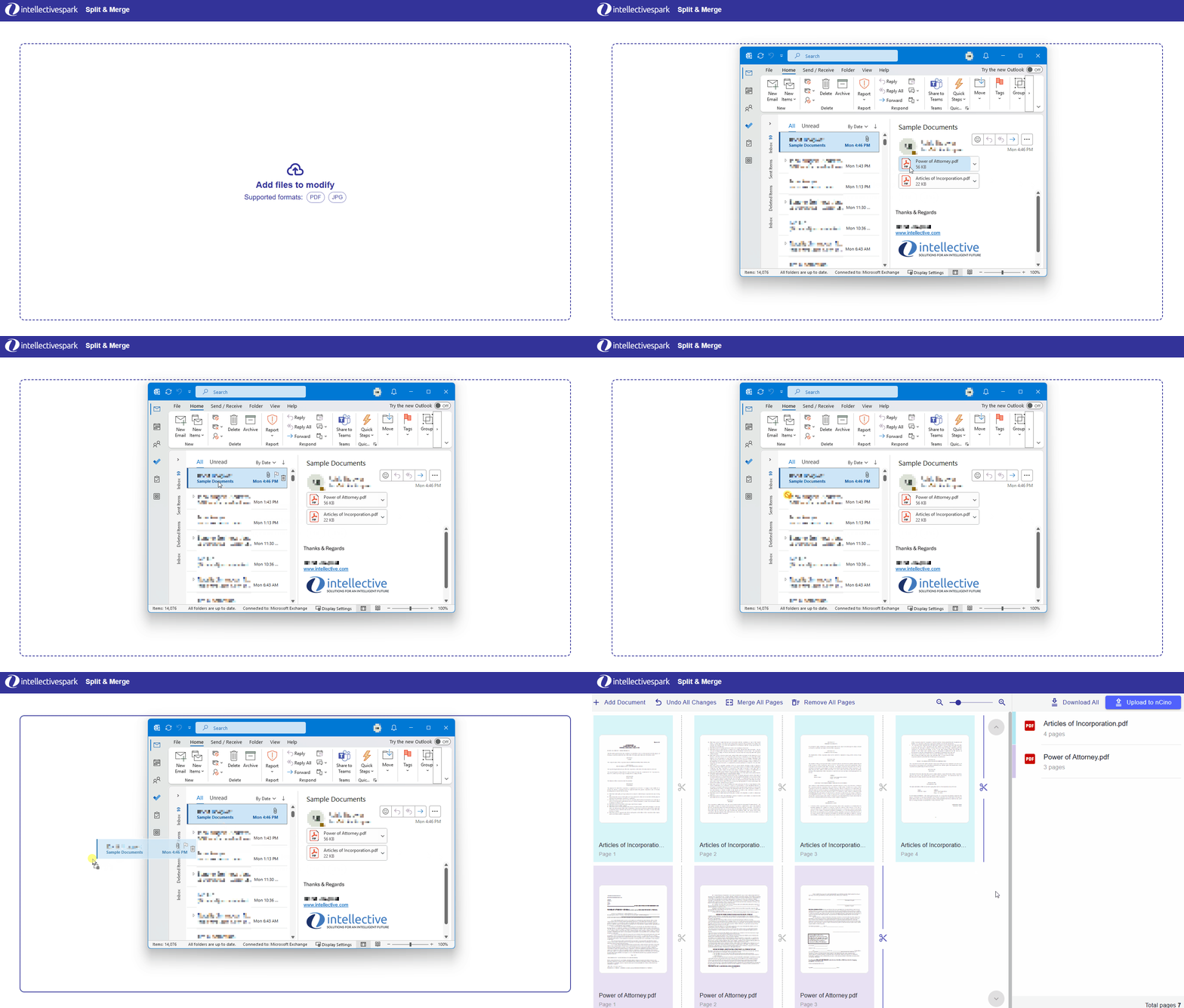
To add documents directly from your email:
Locate the email that contains the document(s) you want to process.
Click on the email and drag it into the Split & Merge page. Release the mouse button to drop it on the page.
The system will extract eligible documents from the email and start displaying their pages on the screen.
Splitting documents
You can use Split & Merge to split a file into multiple documents, and then assign them to placeholders.
Add the document(s) you'd like to split, as described in Adding Documents.
Optional: reorder the pages, delete any excess pages, or otherwise organize the pages as you like, as described in Other things you can do.
Look through the pages and identify where the last page of one document ends, and where the first page of the next document starts.
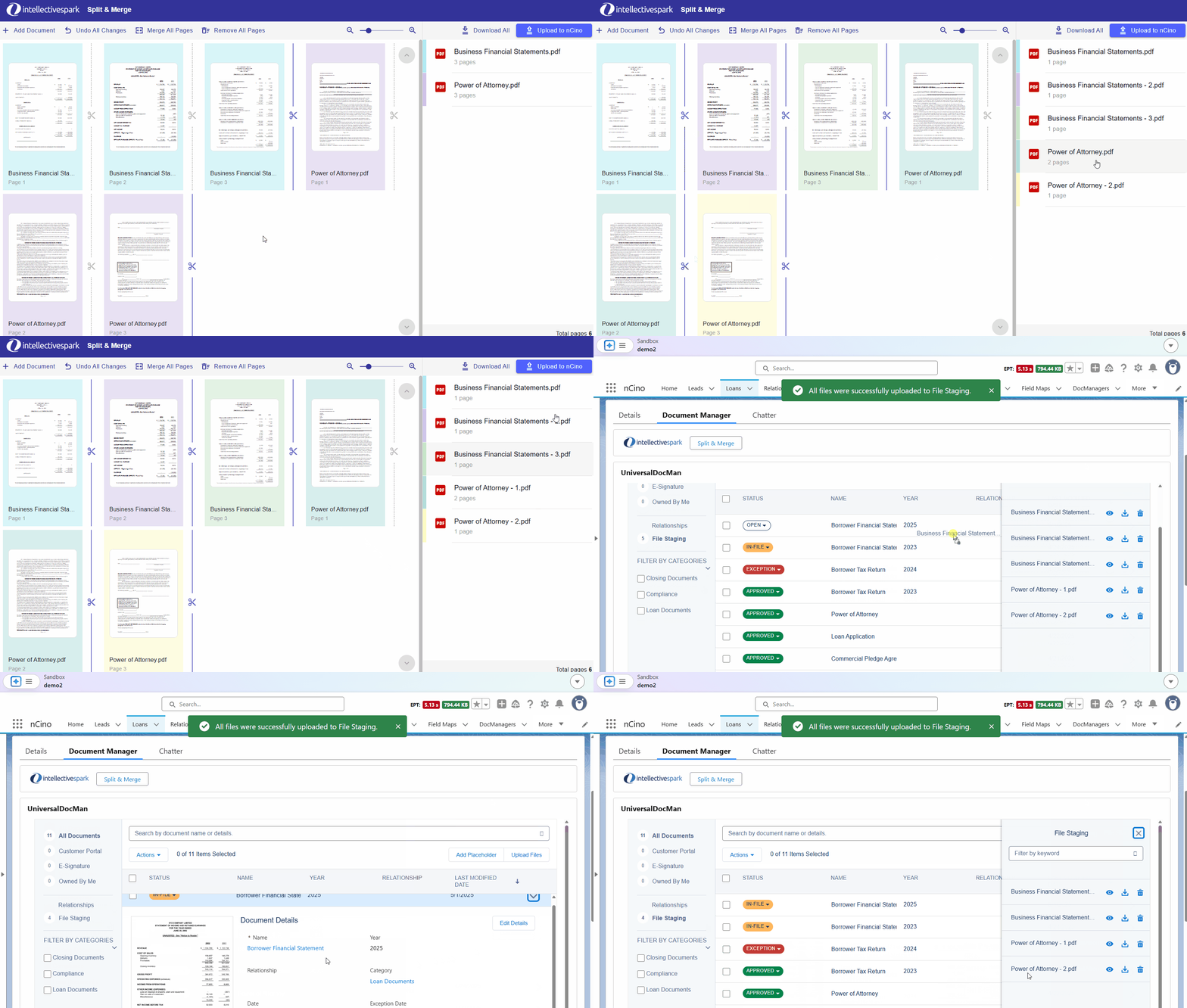
Click the Scissor icon between the pages to add a split point. This will split the document into pieces. A new document will appear on the right-hand panel, and the pages will be highlighted to indicate which document they belong to.
If you want to remove a split point, click the Scissor icon again.
Next, give each of your documents a name:
Click a document in the right-hand panel.
A Document Properties page will be displayed. Enter a new name for the document, and click Save.
Repeat for each document, until all documents have an appropriate name.
Then, add your documents into nCino:
Click on the Upload to nCino button.
The system will upload your documents into the File Staging area of the Doc Man from which you launched Split and Merge.
Close the Split & Merge window and go back to nCino.
Open the File Staging area.
Drag your documents into the appropriate placeholders.
Merging documents
You can use Split & Merge to merge multiple files into one or more documents, and then assign the document(s) to placeholders.
Add the files or documents that you'd like to merge together, as described in Adding Documents.
Optional: reorder the pages, delete any excess pages, or otherwise organize the pages as you like, as described in Other things you can do.
If you would like to create a single document, click the Merge All Pages button. The system will merge all pages into a single document, shown on the right-hand panel.
If you would like to merge into multiple files, you can click individual split points (Scissor icons) to remove them, merging the pages on each side. You can repeat this, adding or removing split points as desired to achieve your desired set of documents.
Next, give your document(s) a name:
Click a document in the right-hand panel.
A Document Properties page will be displayed. Enter a new name for the document, and click Save.
Repeat for each document (if additional documents are present), until all documents have an appropriate name.
Then, add your document(s) into nCino:
Click on the Upload to nCino button.
The system will upload your document(s) into the File Staging area of the Doc Man from which you launched Split and Merge.
Close the Split & Merge window and go back to nCino.
Open the File Staging area.
Drag your documents into the appropriate placeholders.
Other things you can do
There are other actions you can take while Splitting and Merging documents:
Download all documents
You can download documents after splitting or merging them. Click the Download All button to download all documents listed on the right-hand panel to your desktop.

Undo all changes
To undo all changes you've made up until this point, and revert back to the original state of all documents, click Undo All Changes.

Remove all pages
To remove all pages that have been added, and start fresh, click the Remove All Pages button. This will remove all currently-added documents and pages, and allow you to add new documents.

Zoom in or zoom out of all pages
To make the page thumbnails bigger, click and drag the zoom slider. This makes all pages bigger and easier to see, or smaller so that more pages can fit on the screen.

Jump to first page or last page
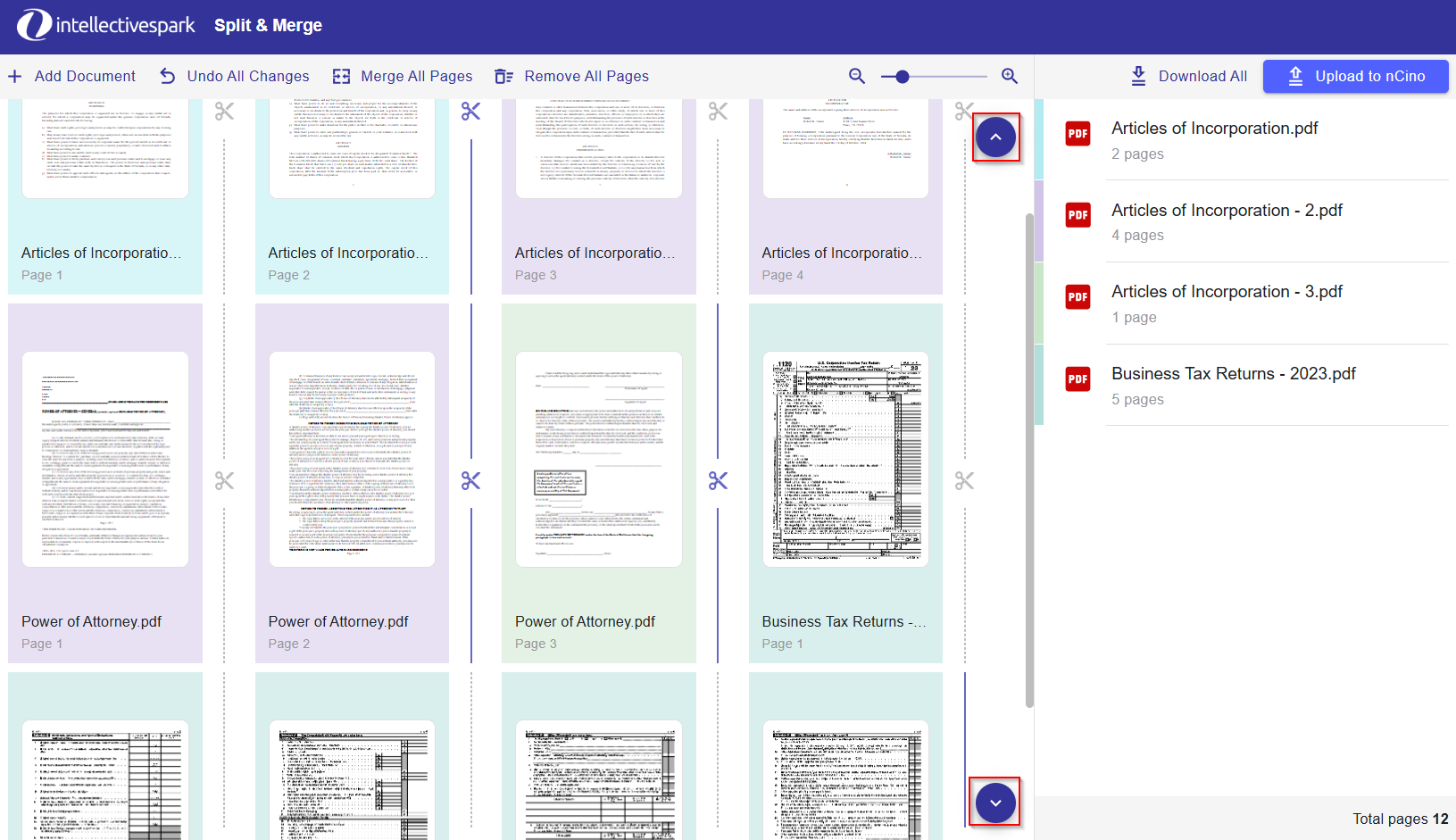
To immediately jump to the first page on the screen, click the Jump Up button.
To immediately jump to the last page on the screen, click the Jump Down button.
Zoom in to a single page
To Zoom in and view the contents of a single page, hover your mouse over the page, and click on the Zoom button.

Delete a page
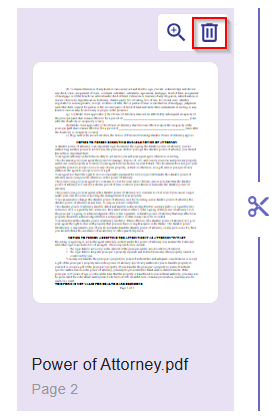
To delete a page, hover your mouse over the page, and click on the Delete button.
Move a page
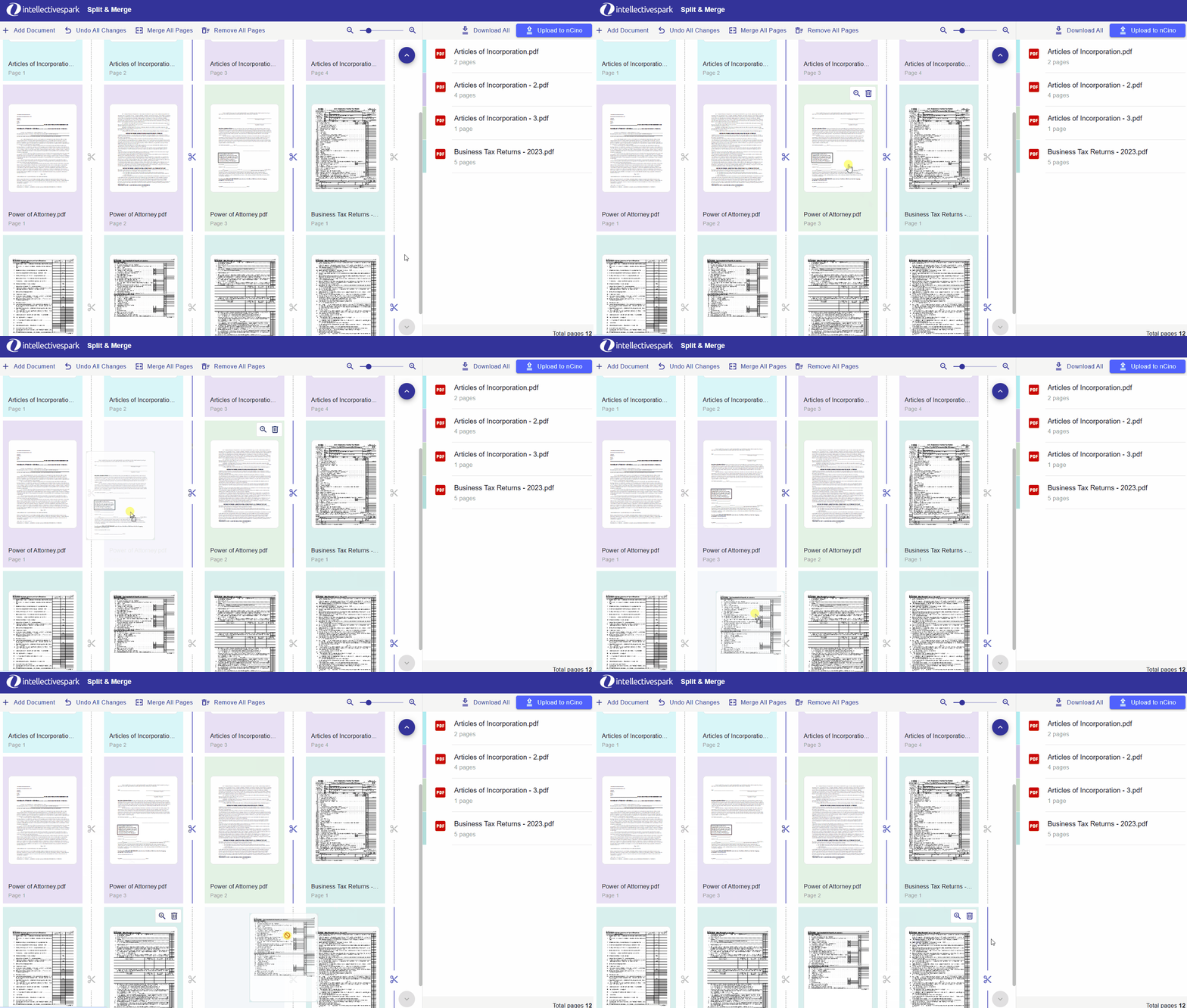
To move a page to a different position in the document, click on a page, hold the mouse button down, and move your mouse left or right. The other pages will slide over to create space for your page. Once the page is where you want it, release the mouse button to drop the page in place.
Getting more help
If you're stuck, have additional questions, or would like to request a feature, please reach out to Intellective Customer Support at sparksupport@intellective.com